Max for Live: What Is It, and Which Ableton Live Resources Are You Missing Out On?
How to Upgrade Your Ableton Live with Your Own Max for Live Devices

 5,0 / 5,0 |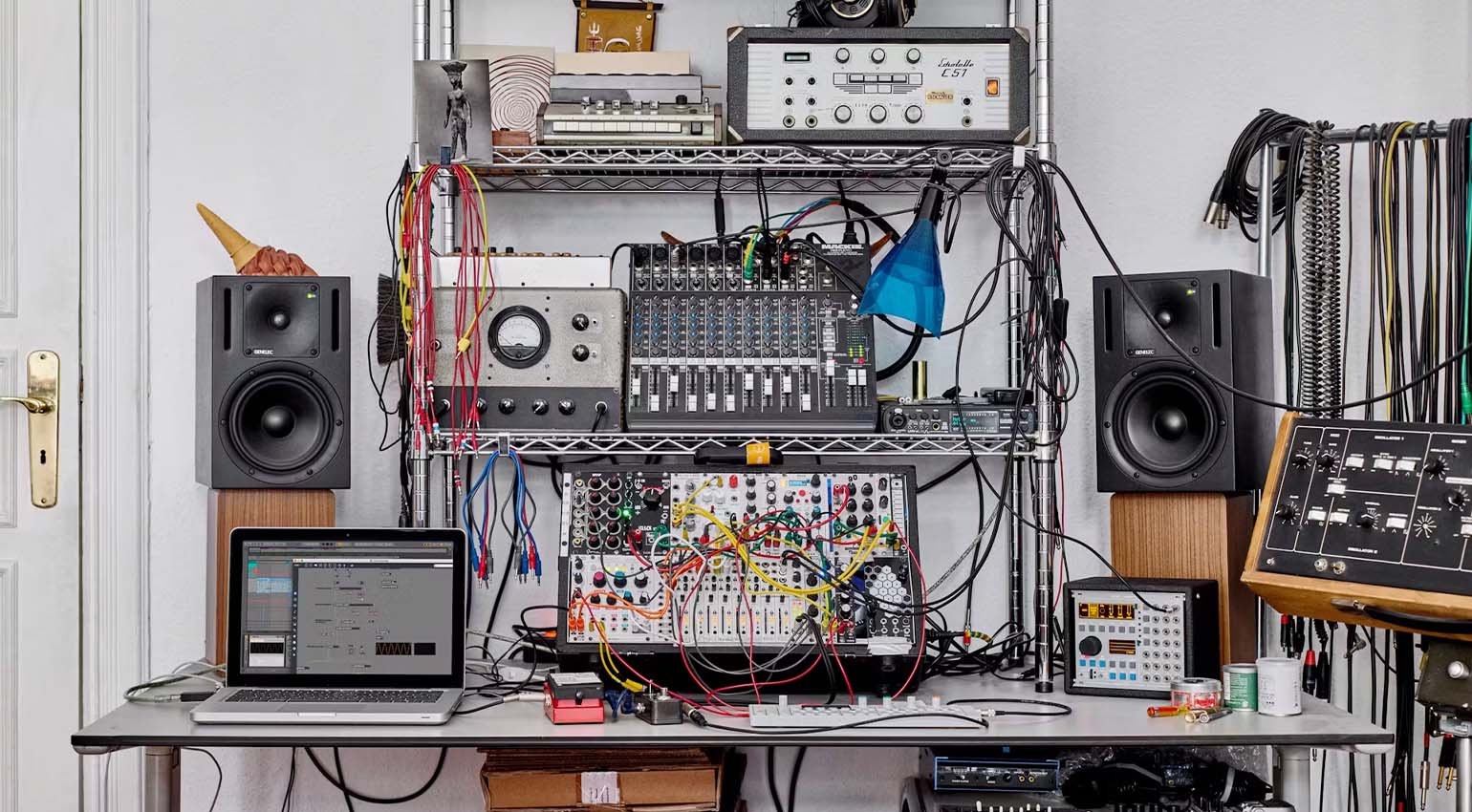
Max for Live: What Is It, and Which Ableton Live Resources Are You Missing Out On? · Source: Ableton

In this article, we’ll walk you through how beginners can expand what Ableton Live can do using the Max for Live programming interface. M4L is a visual programming language packed with tons of free instruments and effects. And for a small price, you can even get genuinely professional-grade effect and synth devices too. If you work with Ableton Live, this is worth checking out.
Max for Live at a Glance
- Max for Live (M4L) is a visual programming interface from Cycling ’74, built directly into Ableton Live
- Included with the Suite edition, or available as a standalone add-on for Standard
- Unlike regular plugins, M4L devices can reach into the entire DAW, not just individual tracks
- Free devices live mostly on Maxforlive.com and ELPHNT’s Curated Collection
- You can build entirely custom instruments and effects, with or without coding experience
- AI-assisted “vibe coding” now lets you build M4L devices without traditional programming knowledge at all
Max for Live: Everything on the Basics, Practical Tips, Vibe Coding, and the Best Free Devices
Max for Live
Ableton Live is without question a powerful DAW with everything producers actually want: excellent sound quality, great instruments and effects, and solid support for live performance. But even if you own Ableton Live, especially the Suite edition, chances are you’re barely scratching the surface of what it can do. Back in 2010, Ableton added Max for Live, a visual programming language from Cycling ’74, which opens the DAW up in a bunch of ways, not least by letting you build your own instruments and effects from scratch.
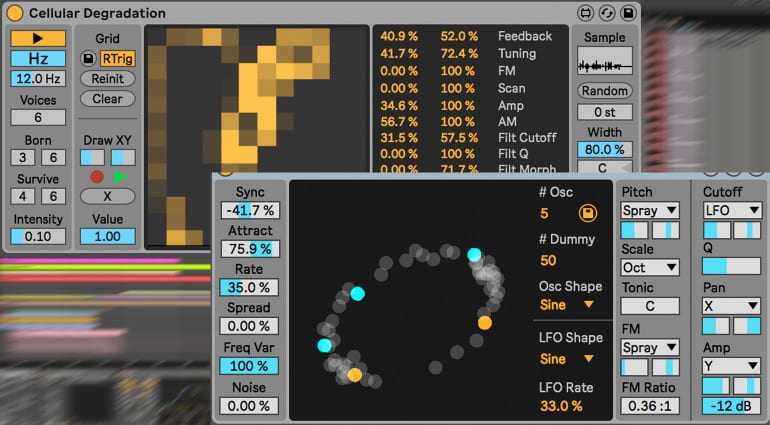
If you’re already a Max for Live power user, go ahead and scroll straight to the comments and tell us how you actually use this interface, and what your favorite tools and devices are. For everyone else, think of this article as both an introduction and a nudge to actually give M4L a shot, and start taking advantage of everything this interface has to offer. Let’s get into it.
Max for Live: The Basics You Should Know
Max for Live, usually shortened to M4L, is a visual programming language whose interface Ableton Live taps into directly. While Max itself, made by Cycling ’74, is a fully featured multimedia programming environment, Max for Live was built specifically for use inside a DAW, and it ships with ready-made instruments and audio/MIDI effects you can use right alongside your usual stock and third-party plugins.
The main thing that sets Max for Live apart from other plugins is that everything is freely editable. Unlike a standard VST, where you’d need to know something like C++ to change anything, M4L runs on a visual programming editor behind the scenes (similar to NI’s Reaktor). Thanks to that modular approach, you patch connections between blocks using virtual cables.
Max for Live ships with the Ableton Live Suite. It’s also available as a separate add-on for the Standard version, in case you don’t need everything else Suite brings to the table.


Why Would You Even Need Max for Live?
If you’ve gotten along fine without M4L so far, you’re probably wondering what all the fuss is really about. The best selling point we can offer: it expands what Live itself can do, and we mean genuinely, substantially expands it.
Set the programming side aside for a second, and you can think of M4L as a whole new category of plugin. Unlike regular plugins, whether stock or third-party, Max for Live devices don’t just touch audio or MIDI on your individual tracks, they can reach into the entire DAW. Live, even.
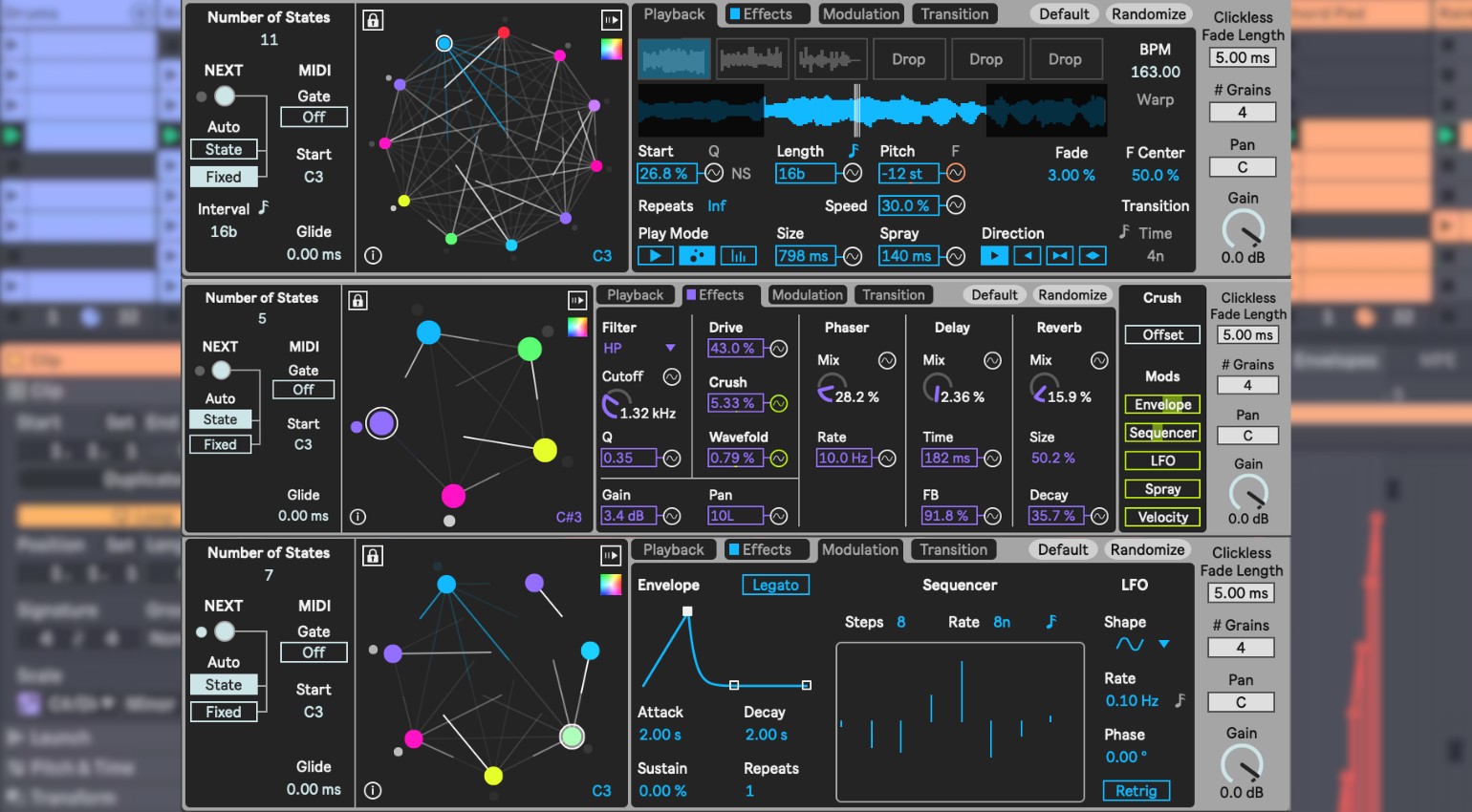
M4L devices tend to lean wild and experimental, take Superposition, a sample mangler (and then some) from developer Dillon Bastan. There are just as many genuinely useful utilities too, like the LFO, which actually started life as an M4L device but has shipped standard across every track and parameter in the DAW since Ableton 11.
M4L devices can also drive physical MIDI gear (synths, drum machines), help you interact with the physical world (outboard effects, external sequencers), support you during live sets, and plenty more.
Here are a few examples pulled from a Reddit thread called “Max for Live Use Cases“:
- Controller plugin for hardware effects units
- Expanding what Push can control
- Triggering video during live performances
- Unusual MIDI sequencers
- Programming inside Max for Live itself
The real power, of course, only shows up once you start programming in M4L yourself. Since it’s a visual language, the barrier to entry isn’t nearly as high as you’d think. If you’re already comfortable with modular environments like Native Instruments’ Reaktor, building devices in Max for Live should feel pretty familiar.
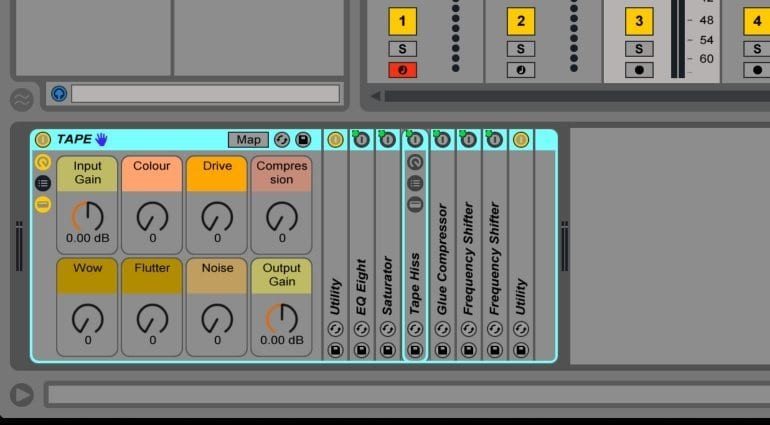
As M4L developer ELPHNT puts it on their site: “The basics of Max are relatively easy to learn. You can probably learn everything you need to build simple patches in a few hours. The complexity comes from learning all the different objects available and their functions, along with more complex logic and DSP algorithms.”
You don’t even have to start by building something completely from scratch, you can just modify an existing device. In fact, every device is editable. Just open it up and start changing things. Or combine bits and pieces from different Max for Live devices into an entirely new multi-effect. The possibilities here are basically endless.
Having an easy-to-use programming language built right into your own DAW is genuinely handy. If Live’s missing a feature you really want, you can just build it yourself, fast, instead of waiting around and hoping the dev team eventually ships it in some future update.
Free Max for Live Devices
Just like with Reaktor, there’s a big community of developers building their own devices for M4L. Some carry a price tag (often a very reasonable one), while countless others are completely free. Pretty great, honestly.
The best place to hunt for free M4L devices is Maxforlive.com, a massive library of genuinely interesting tools and sound generators for Ableton Live.
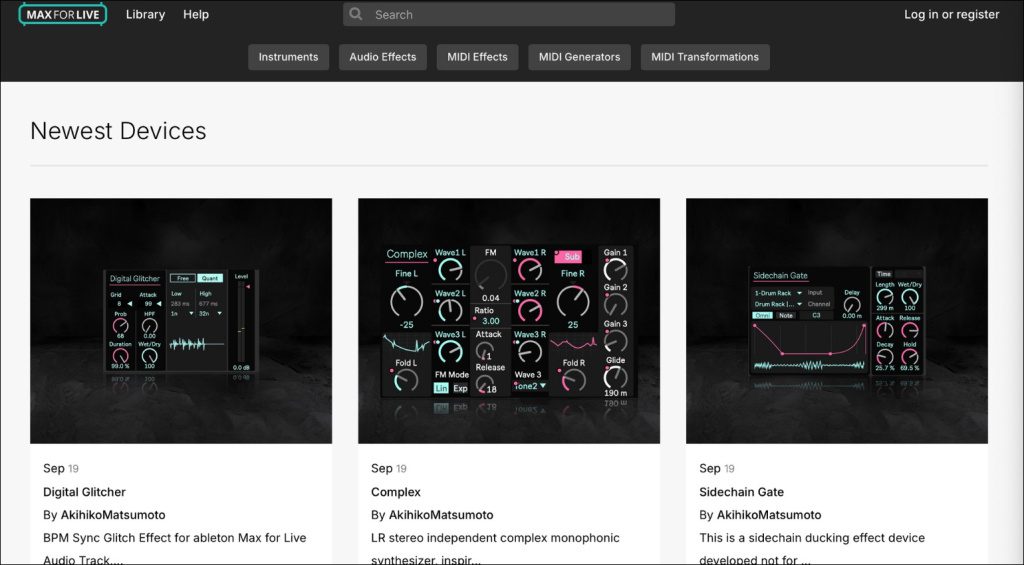
For a greatest-hits selection, check out ELPHNT’s Max for Live Curated Collection, which lists an incredible number of free M4L devices in one spot. Not every link on that list still works, unfortunately, but you can still pick up ideas there and track down the tools elsewhere online. You’ll almost certainly find what you’re after, possibly even newer, more feature-packed versions of the same devices. And there’s plenty to dig through.
Plenty of professional M4L developers offer free devices too. One of our favorites is blööps, a developer behind quirky instruments and effects like bathrööms, “a reverb and granular delay that sounds like your bathtub.” You’ll find more interesting finds (free ones included) in our weekly Sound Boutique series on GEARNEWS.de.
If you build your own devices, let us know in the comments. Feel free to share your own favorites list too. Thanks!
In Practice: Building Your First Max for Live Device
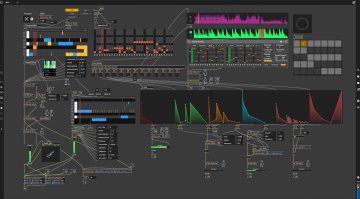
The easiest way in isn’t building a device from scratch, it’s opening an existing one and tweaking it. Load one of the free devices from Maxforlive.com into a Live set, click the small gear icon in the top right of the device window, and choose “Edit.” That opens the Max patch view, showing you the entire structure behind the effect or instrument, every object, every connection.
A good first test: grab a simple effect device, a basic delay or filter works fine, and change just one single value directly in the patch, say, the range of a knob or its default position on load. Save the device under a new name, and there you go, your first custom M4L variant.
If you want to go deeper, start with a blank Max Instrument or Max Audio Effect device (found under the “Max for Live” category in the device browser). From there, build up object by object, something like a simple LFO using the `phasor~`, `*~`, and `+~` objects, connect the outputs with virtual cables, and route the result through a `live.dial` object into a Live parameter at the end. Sounds like a lot at once, sure, but that’s exactly what the official Max documentation and countless YouTube tutorials are for, walking through each of these steps individually.
One thing worth keeping in mind as a beginner: save early, save often, and test inside your Live set after every change to make sure the device still does what it’s supposed to. A broken patch is usually way faster to fix if you know which of your last three changes caused the problem, instead of digging through fifty objects trying to find it.
Vibe Coding Your Own Max for Live Devices
One trend making Max for Live noticeably more approachable right now: vibe coding, building code (or in this case, Max patches) through plain-language instructions to an AI model instead of manually placing every single object. Cycling ’74 has already baked some AI-assisted features directly into Max 9, and there are external tools and chatbots out there built specifically to generate Max patches too.
One genuinely interesting example is Dillon Bastan’s ChatDSP, a tool that generates Max for Live devices straight from text prompts. Instead of programming your own device in Max, you just describe what you want in a few words, something like “a stereo delay with a ping-pong function and a feedback filter”, and the tool generates a working Max for Live device from that description, no manual patching required.
Worth knowing: AI-generated patches are rarely perfect out of the box. Usually there’s still manual cleanup involved, especially around dialing in value ranges, the interface, or more complex DSP behavior. If you’re learning M4L through vibe coding, it’s still worth walking through the generated code step by step instead of copying it blindly, that’s exactly how you end up actually learning how Max itself works underneath. Vibe coding doesn’t replace understanding the fundamentals, it just lowers the barrier enough to get you started in the first place.
FAQ: Common Max for Live Questions
Do I need coding experience for Max for Live?
No, not to get started. M4L is a visual programming language, you connect objects with virtual cables instead of writing code. Plenty of experienced M4L developers say the basics can be picked up in just a few hours, though more complex DSP logic takes considerably longer.
Do I need Ableton Live Suite for Max for Live?
Not necessarily. M4L comes standard with the Suite edition, but you can also buy it as a separate add-on for Standard.
Can I use Max for Live without Ableton Live?
No, Max for Live is built specifically to integrate with Ableton Live. If you want to use Max as standalone software, you’ll need the full version of Max directly from Cycling ’74.
Where can I find free Max for Live devices?
The biggest hub is Maxforlive.com, plus ELPHNT’s Curated Collection. Plenty of individual developers like blööps also offer free devices directly through their own websites.
Can I modify existing Max for Live devices?
Yes, pretty much every device can be opened and edited. Right-click the device, choose “Edit,” and you’ll see the full patch structure underneath, perfect for learning and customizing.
What’s the difference between Max for Live and Native Instruments Reaktor?
Both are visual, modular programming environments built on a pretty similar philosophy. The key difference: M4L is built directly into Ableton Live and can reach into the whole DAW live, while Reaktor runs as its own standalone plugin or program, independent of any particular DAW.
Is vibe coding actually beginner-friendly for Max for Live?
Yes, as an entry point it works well, but it doesn’t replace understanding the basics. AI-generated patches almost always need manual cleanup afterward, and if you want to actually learn from it, walk through the generated code step by step instead of just copying it.
Bottom Line
Max for Live is one of the most underrated features in Ableton Live, largely because it’s not immediately obvious what value a programming interface even adds to your workflow. Once you’ve dug through the free devices on Maxforlive.com, or built your own first device, however simple, you’ll understand pretty quickly why M4L has held onto such a loyal community for over a decade now.
Vibe coding lowers the entry barrier even further these days, you barely need traditional coding knowledge to start experimenting on your own. If you’ve only ever worked with finished plugins so far, M4L is genuinely worth checking out, the time you put in usually pays off faster than you’d expect.
More Information
- Ableton Max for Live product page
- Cycling ’74 Max for Live product page
- Everything on Ableton
- More on Max for Live at Gearnews
*Note: This article contains affiliate links that help us keep Gearnews running. The price for you always stays the same! If you buy something through these links, we receive a small commission. Thanks for your support!

This might also interest you